Shaders

(Unity Shader Tool)


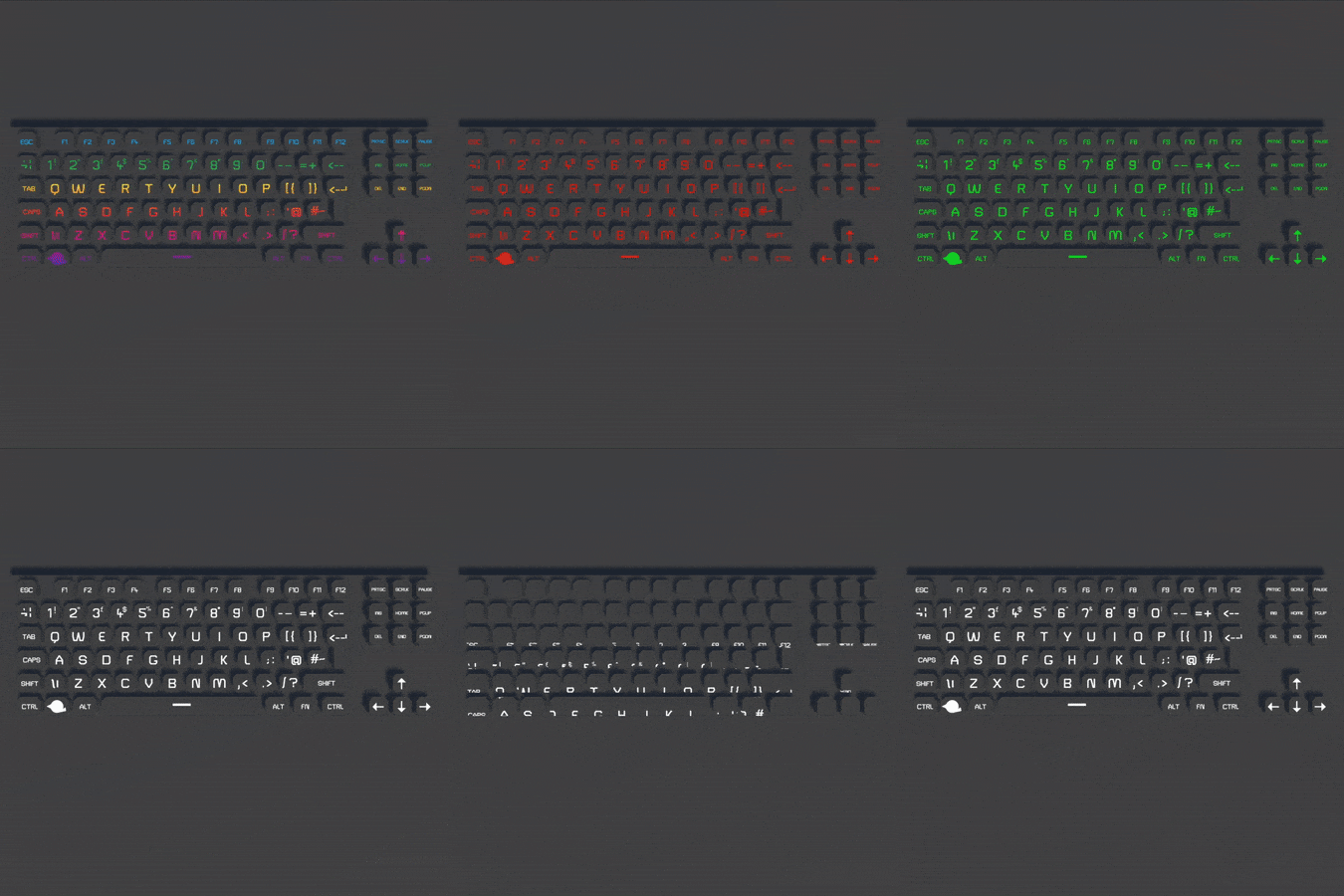
My Shaders Diorama was built to explore the use of Unity's Shader Tool and demonstrates various different Shaders.

Shaders

Matrix Code Scroll

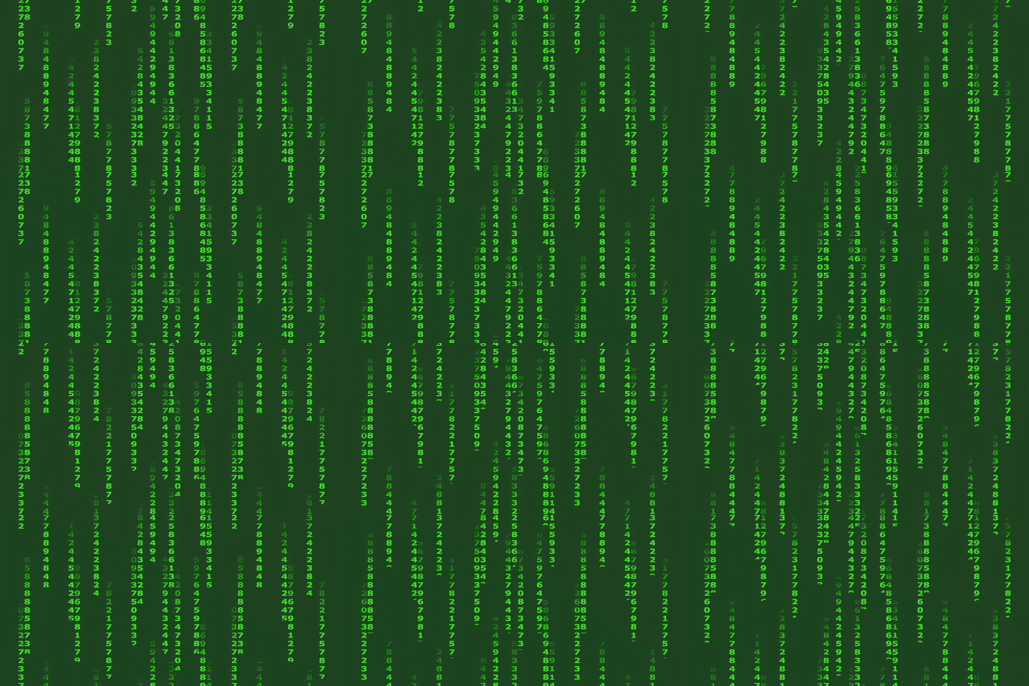
Matrix Style Code Scroll

To create this effect I first created a basic gradient rain texture and scroll it downwards by multiplying the offset with the time.
Next, the scrolling gradient is multiplied by a "Text Wall" texture to change the gradient into a trail of numbers/letters.
Applying a multiplication with a colour then allows for this to be coloured any way desired.
Finally, mulitplying the Gradient's transparency by the "Text Wall's" transparency allows only the lit up section of text to be visable creating the Matrix Scroll effect.
Static Security Camera

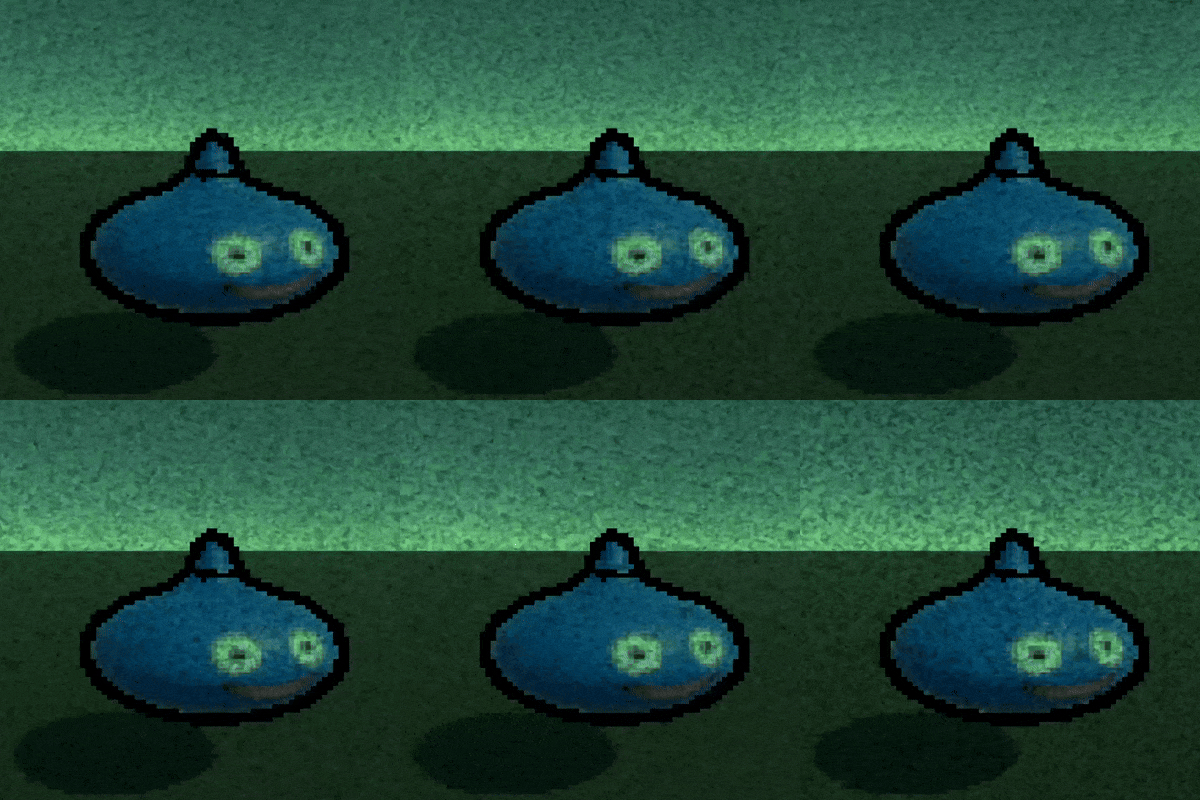
Camera Static

To create the static camera effect, I began by generating a simple noise node. I then applied a rotation to its UVs at an adjustable speed, causing the noise pattern to shift dynamically.
Next, I multiplied this noise with a render texture captured from an in-game camera. This blends the static effect into the final output texture.
Lastly, multiplying this again with a colour allows for the addition of a colour tint to the end image resulting in my static camera effect.

Model Outlines, Sizing and Colouring

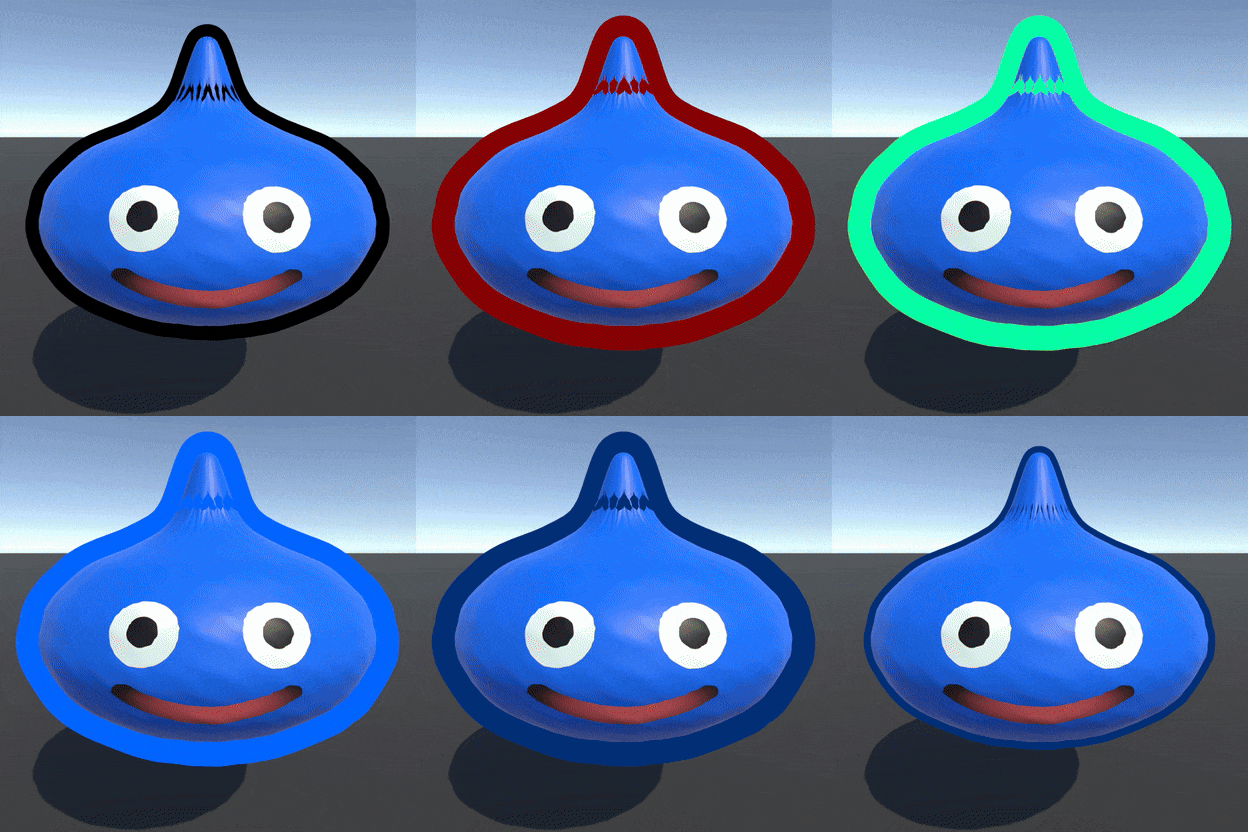
Model Outlines

To create the model outline effect, I started by getting the model's normals, normalized them, and expanded them outward by an adjustable strength value, that can be used to control the outline thickness.
Then, these modified normals were then added to the base model's vertex positions, and set only back faces to be rendered.
Finally, to complete the effect, I ensured any non-front facing polygons had an alpha value of 1. Leaving only back faces visible and creating an effective dynamic outline for the model.

Hologram Effect

Hologram

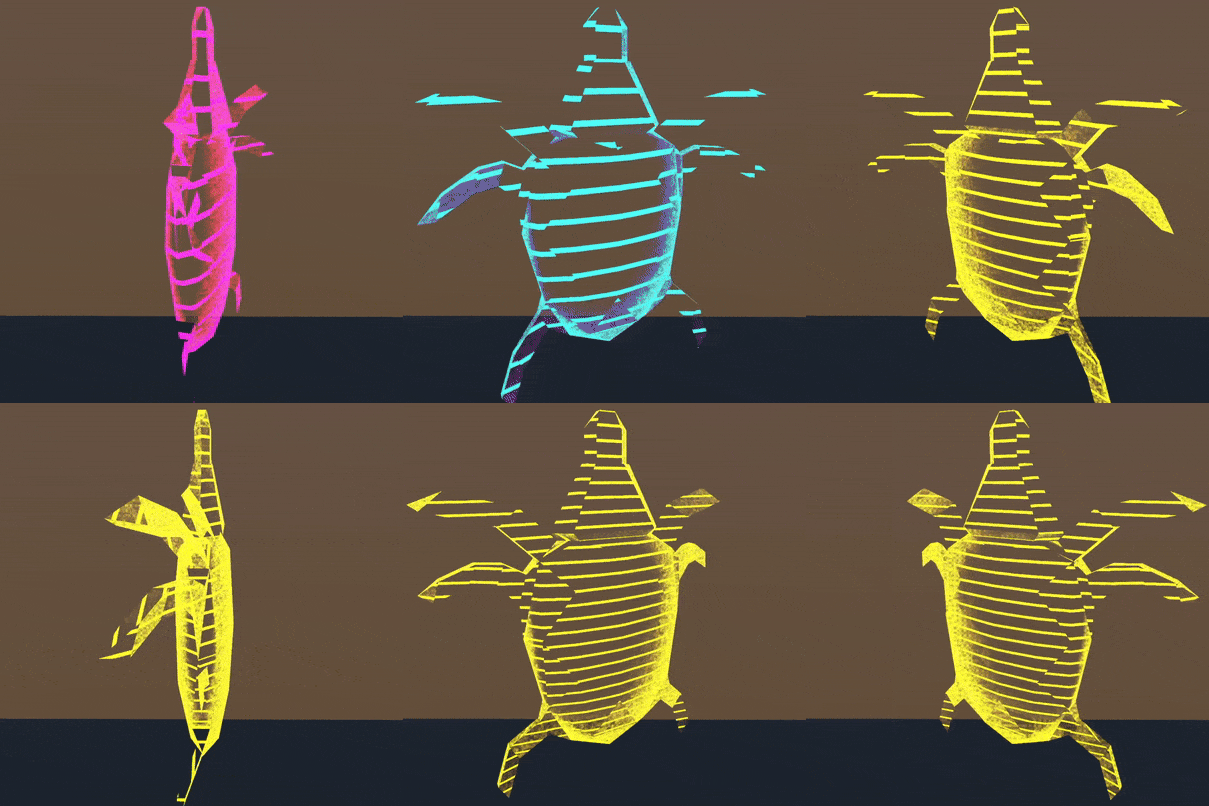
The hologram effect consists of two main components: the scanline effect and the edge highlights.
The scanline effect is created using a fraction and rectangle node to generate evenly spaced lines.
These lines are then inverted using a "one minus" node, a dither effect is applied after this to add a semi-transparent appearance.
The edge highlights are created using a Fresnel effect node, which is combined with Voronoi noise and an additional dither effect to create an interesting, semi-transparent edge to the model.
Finally, both effects are combined together to get both the transparency and colouring desired. A "glow colour" is then multiplied into the colour component to allow for customisable colours.

Wall Grid

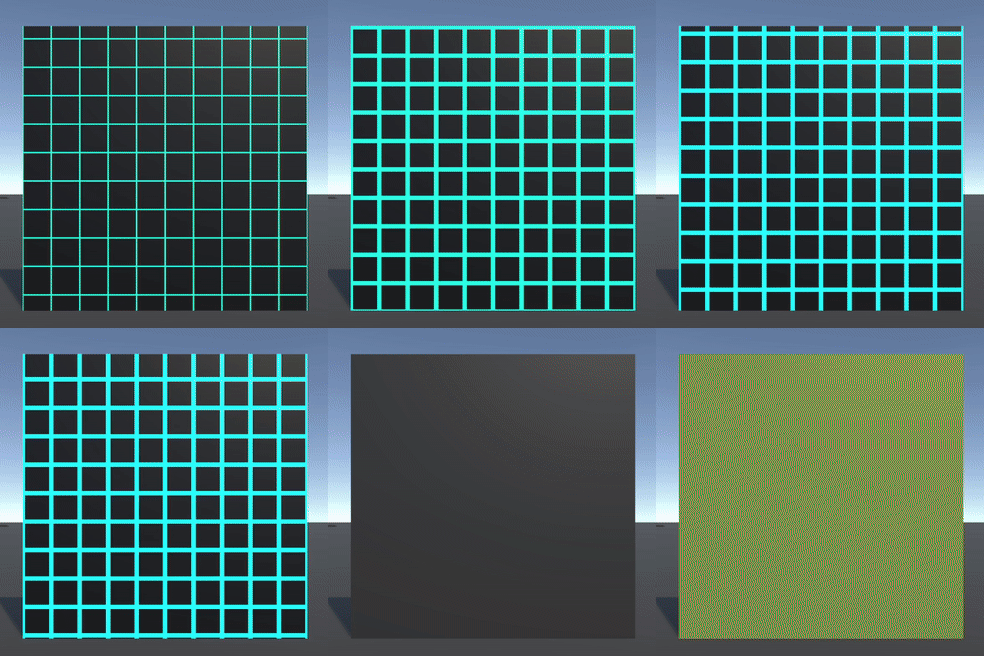
The wall grid effect is created using the same fraction and rectangle nodes as the scanline effect, but with adjusted values. When inverted using the "one minus" node, these modifications form a grid pattern.
This grid is then multiplied by a customizable color and passed through a branch node, allowing the grid to be toggled on or off as needed.

Wall Grid

Bounce

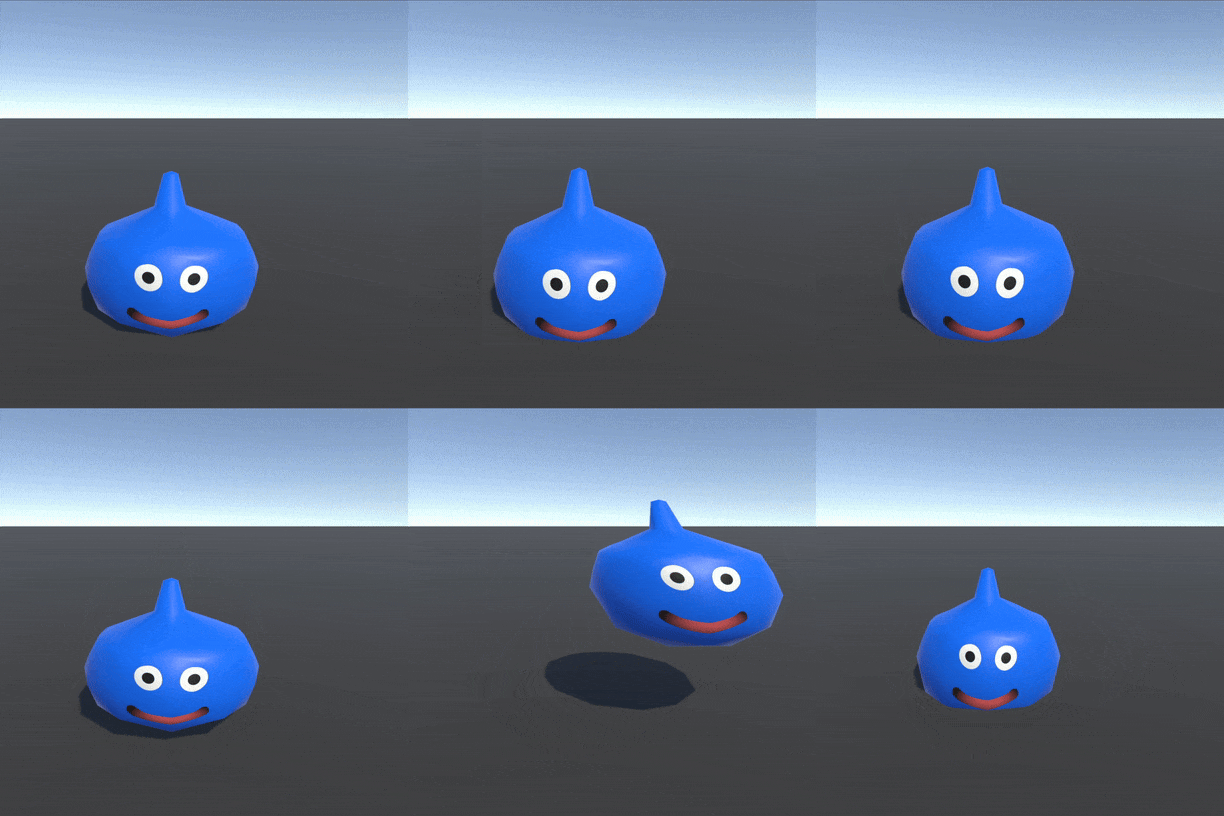
The bounce effect is created by modifying the model's vertex positions, starting by splitting off the y position.
Then, adding the value to a "WobbleSpeed" variable and running the output through a sine wave, creating a smooth oscilating motion. Then to prevent movement below zero, 1 is added to the sine wave output.
This is then multiplied by the desired displacement vector for the X,Y and Z axes, and clamped by a "strength" variable before being added to the original vertex position to create the bouncing motion.

Slime Bounce

Dance Floor

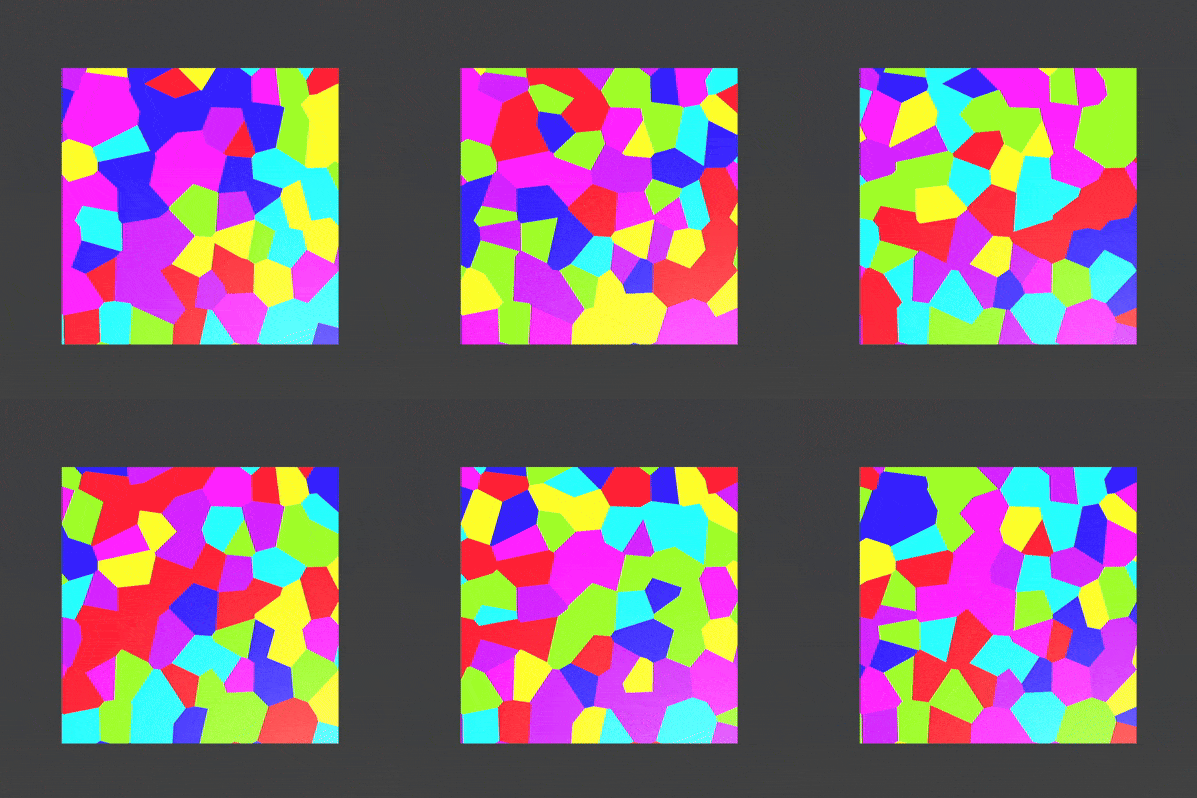
The Dance Floor Shader uses Voronoi noise to generate an interesting dance floor like pattern.
A speed variable is added to this to randomise the shade of the noise's "tiles" over time.
Finally, a gradient is sampled based on the "tiles" shade to determine what colour the "tile" should be.

Dance Floor

Decal

The Decal Shader starts out by getting the clip space and scene depth.
Multiplying this by the Inverse View Projection then spliting the Vector4 and dividing the X,Y and Z by the W to get the World Space.
This is then Converted to Object Space and clamped to within the bounds of the cube such that only pixels intersecting the cube will be effected.
A 0.5 offset is added to the Object Space for the correct UV offset for the cube to apply the texture correctly as the decal.

Keyboard Decal